

Where do I sign in?
The Console lives at your club’s WayFairer address, under /app. Staff sign in with email and password, or with Google and Apple if your club has enabled them.
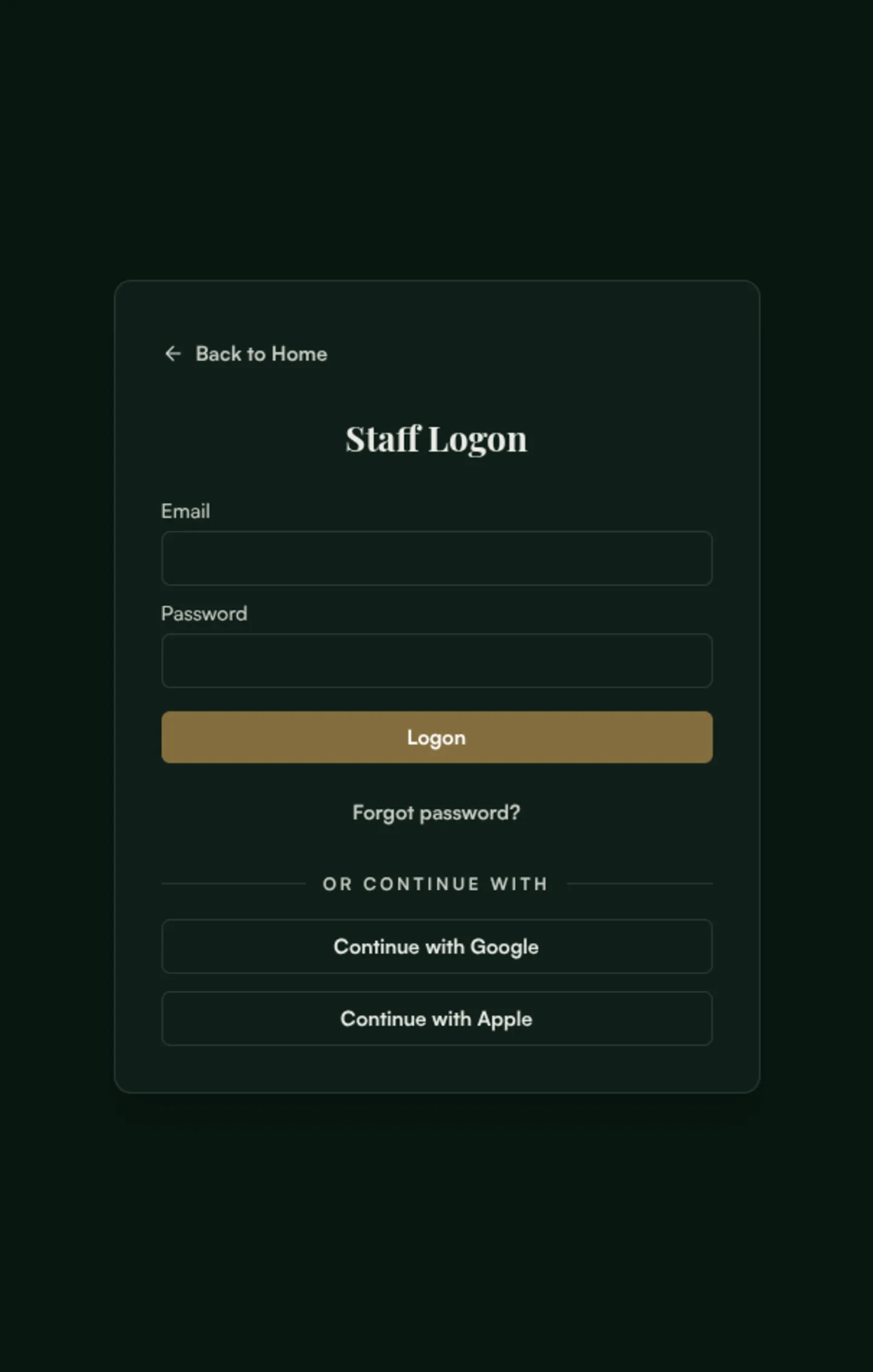
A course administrator lands in their course. A system administrator managing several clubs picks one from the course list first.
How do I see what is happening on the course?
The Map is the live view. Every group with a round in play appears on it.
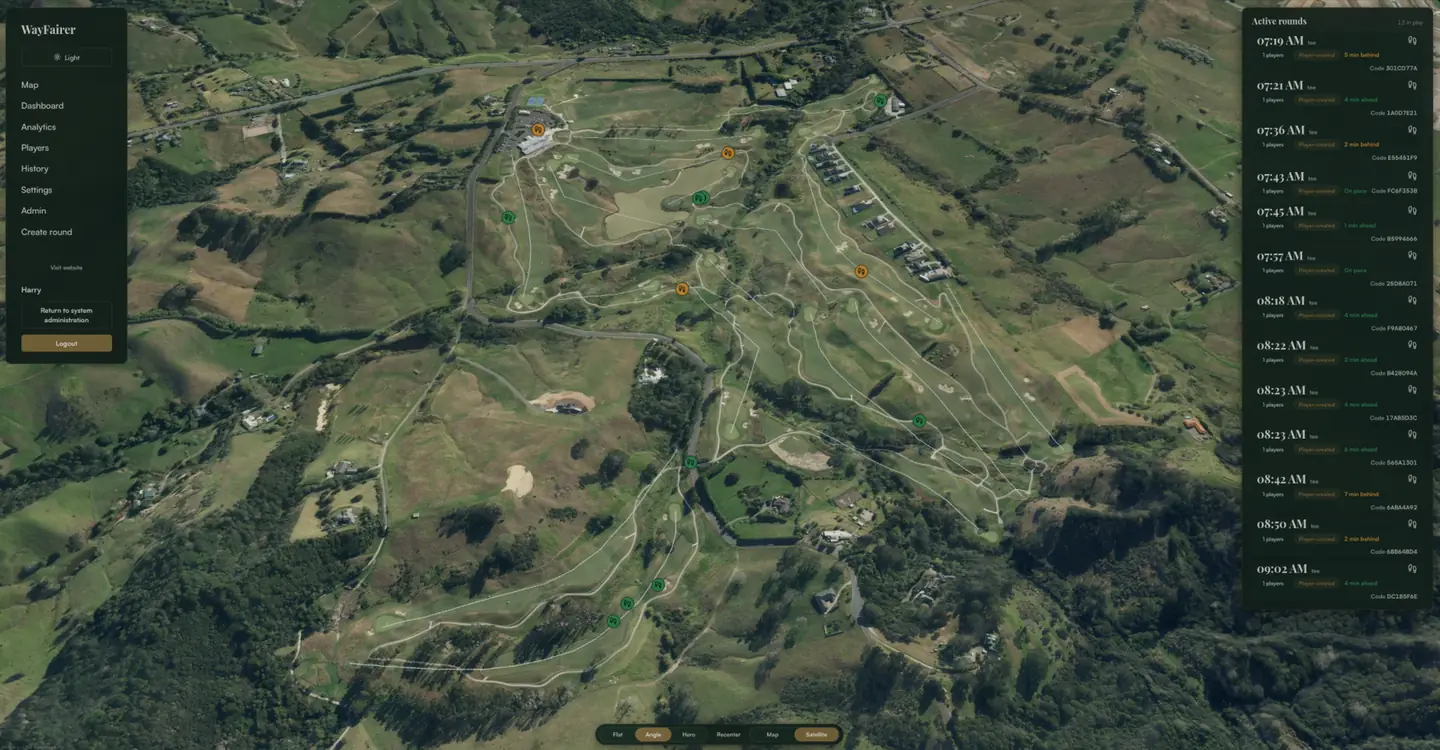
Flat, Angle and Hero change the camera. Map and Satellite change the imagery.
Nothing needs starting manually. A round appears once the golfer tees off.
What is the Dashboard for?
The Map tells you where groups are. The Dashboard tells you how the course is running: one line for the whole course, then every group ranked worst-first.
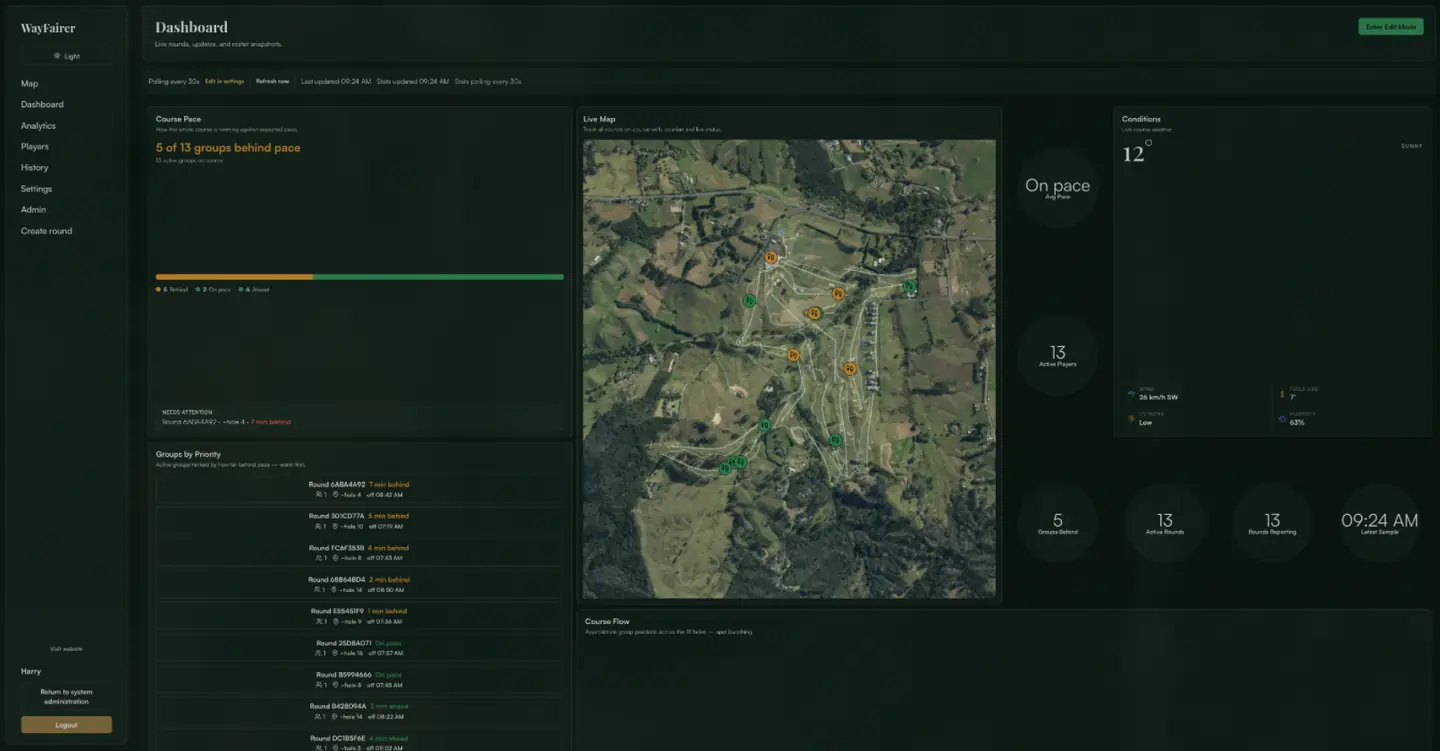
It updates every 30 seconds. Refresh now forces it, and Enter Edit Mode rearranges the tiles.
How do I communicate with a group?
Open the round from the map and select Chat. Messages reach the golfers’ phones as notifications.
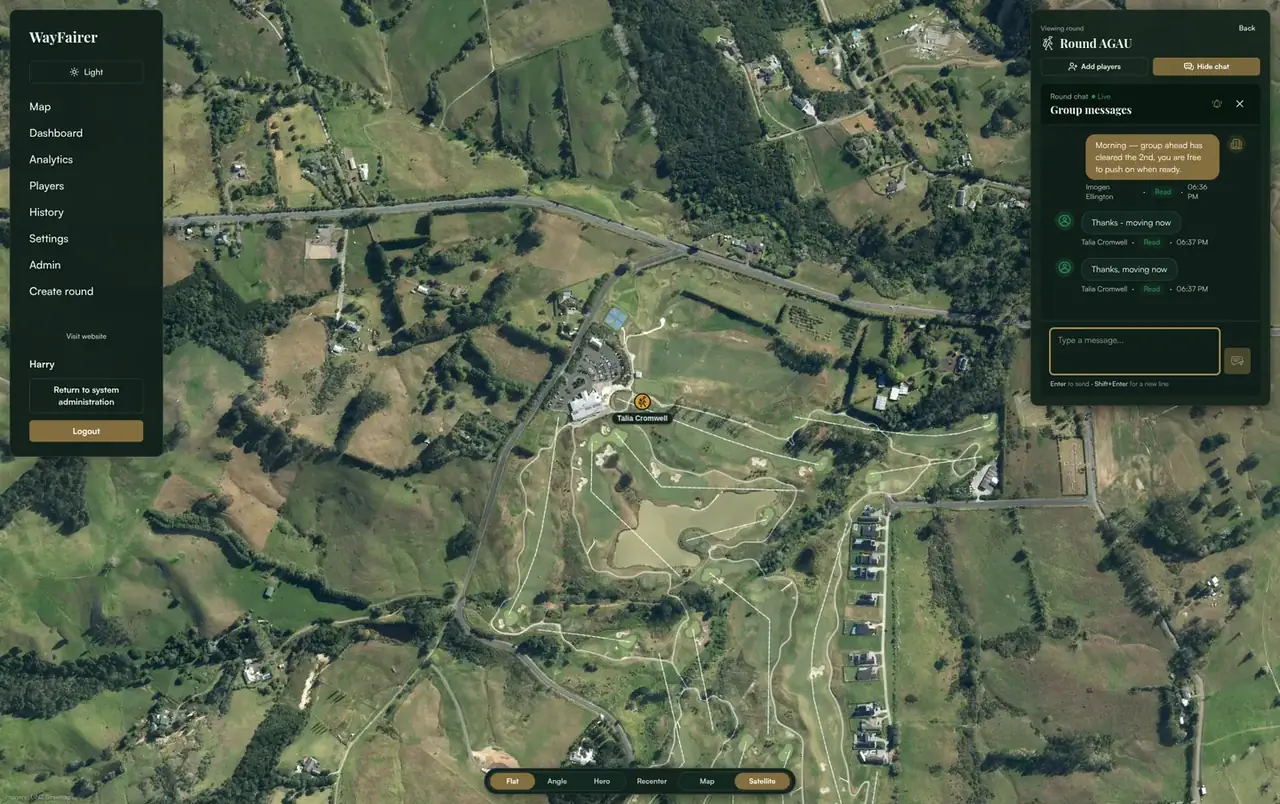
Chat runs for the length of the round. Messages land best when they tell the group something about the course ahead of them, rather than restating pace.
The group ahead has cleared the 2nd. You’re free to continue.
That gives the golfer a clear action without making the message feel unnecessarily critical.
Sending a pace or course alert
The bell icon opens Send Notification: 13 presets, each with a preview of what the golfer receives.
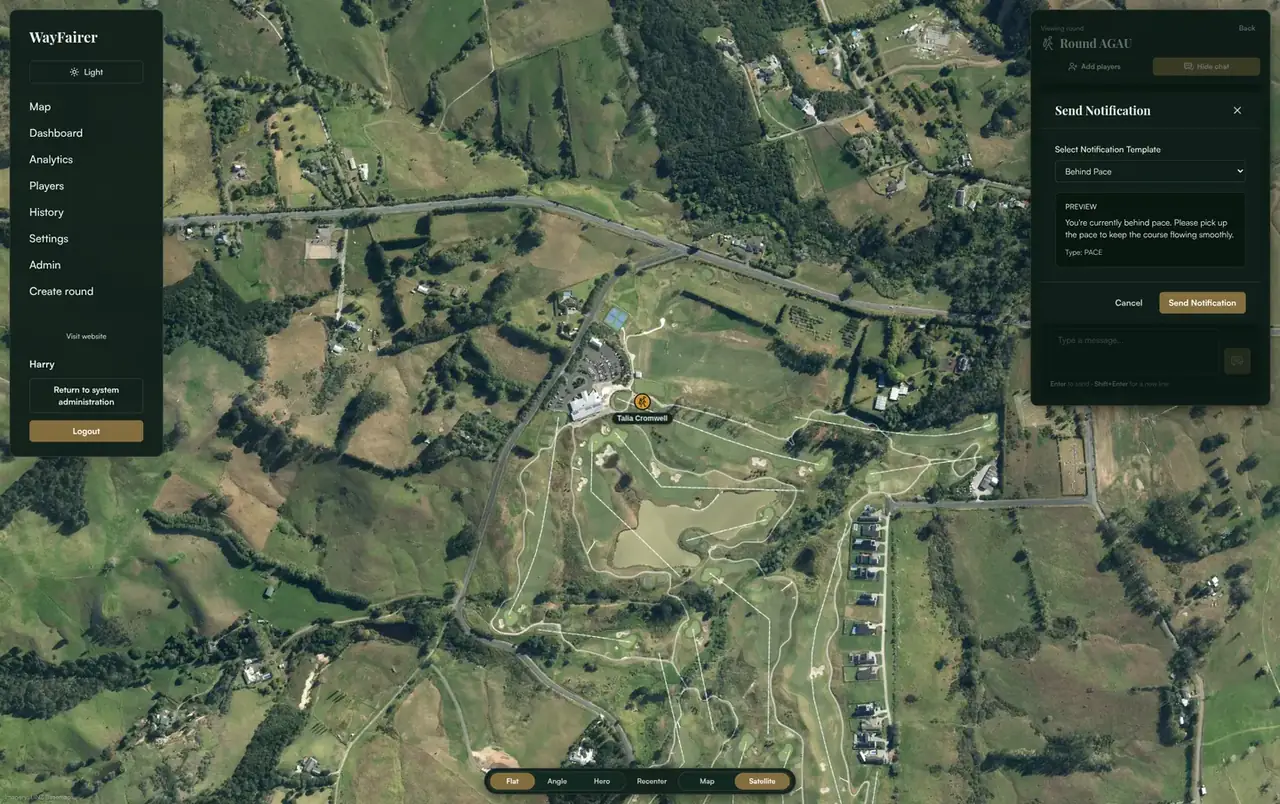
Pace. Behind Pace, On Pace, Ahead of Pace, Pick Up Pace, Let Groups Play Through.
Weather and closures. Lightning Warning, Weather Delay, Course Closure, Cart Path Only.
Course operations. Return Scorecards, Course Alert, Beverage Cart Available, Course Exit.
Templates keep the wording consistent whoever is on duty, and every one sent is recorded in the round chat.
For what the golfer sees at the other end, see Using the WayFairer App.
Where can I see our course performance?
The Dashboard tab covers total rounds, average duration across 18 holes and each nine, the spread of round times, and anomalies.
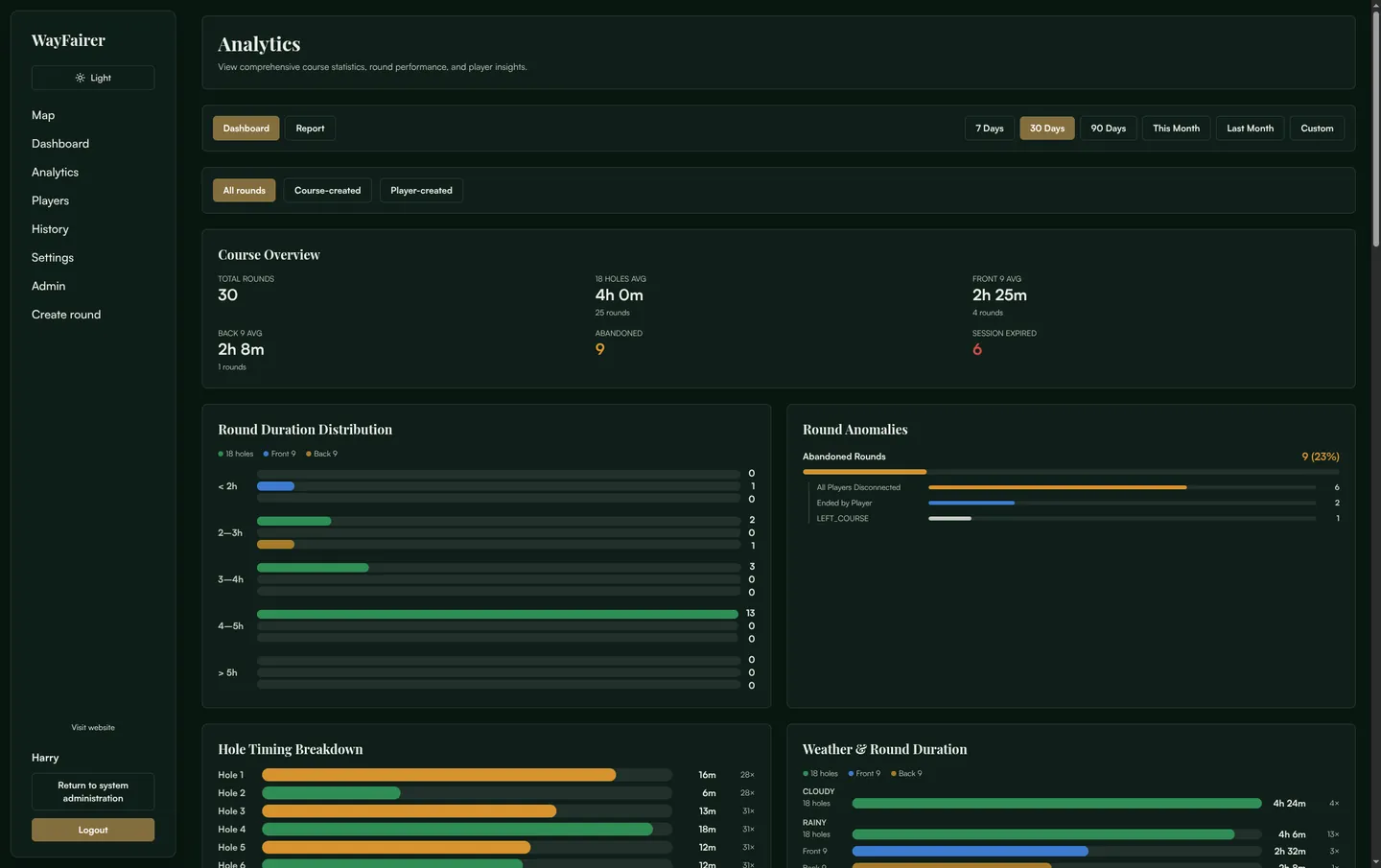
You can also separate Course-created rounds from Player-created rounds when reviewing your data. Further down the page you will find Hole Timing Breakdown, Weather & Round Duration, Player Lookup, Player Anomalies and Recent Rounds.
Where does the course jam up?
The Congestion Heatmap scores each area against what is normal for that type of ground on your course, rather than against raw time spent.
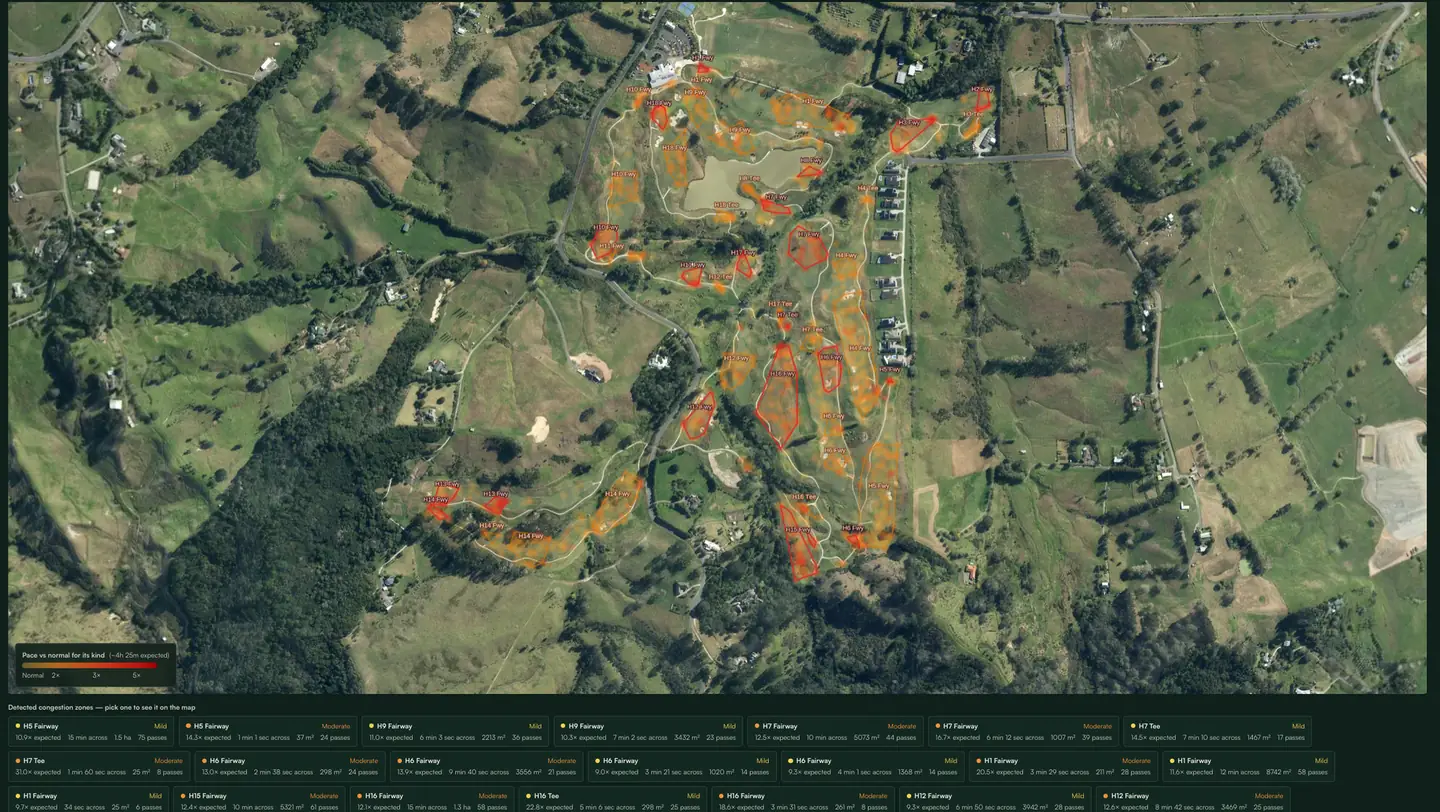
A red area on a green does not mean that golfers spend time on greens. It means they are spending more time on that green than they spend on your other greens.
The system compares like with like: tees against tees, greens against greens, fairways against fairways. Clubhouse buildings, other structures and the driving range are excluded so they do not distort the results.
Beneath the map, Detected congestion zones lists each one with its hole and ground type, how far over expected it runs, how long groups spend there, its area, and the number of passes behind it. Picking a zone highlights it on the map.
The pass count records how many times groups crossed that ground in the selected period, which is what gives a reading its weight.
How do I create a report?
The Report tab builds a presentation-ready report for the selected range, with a live preview of the printed page.
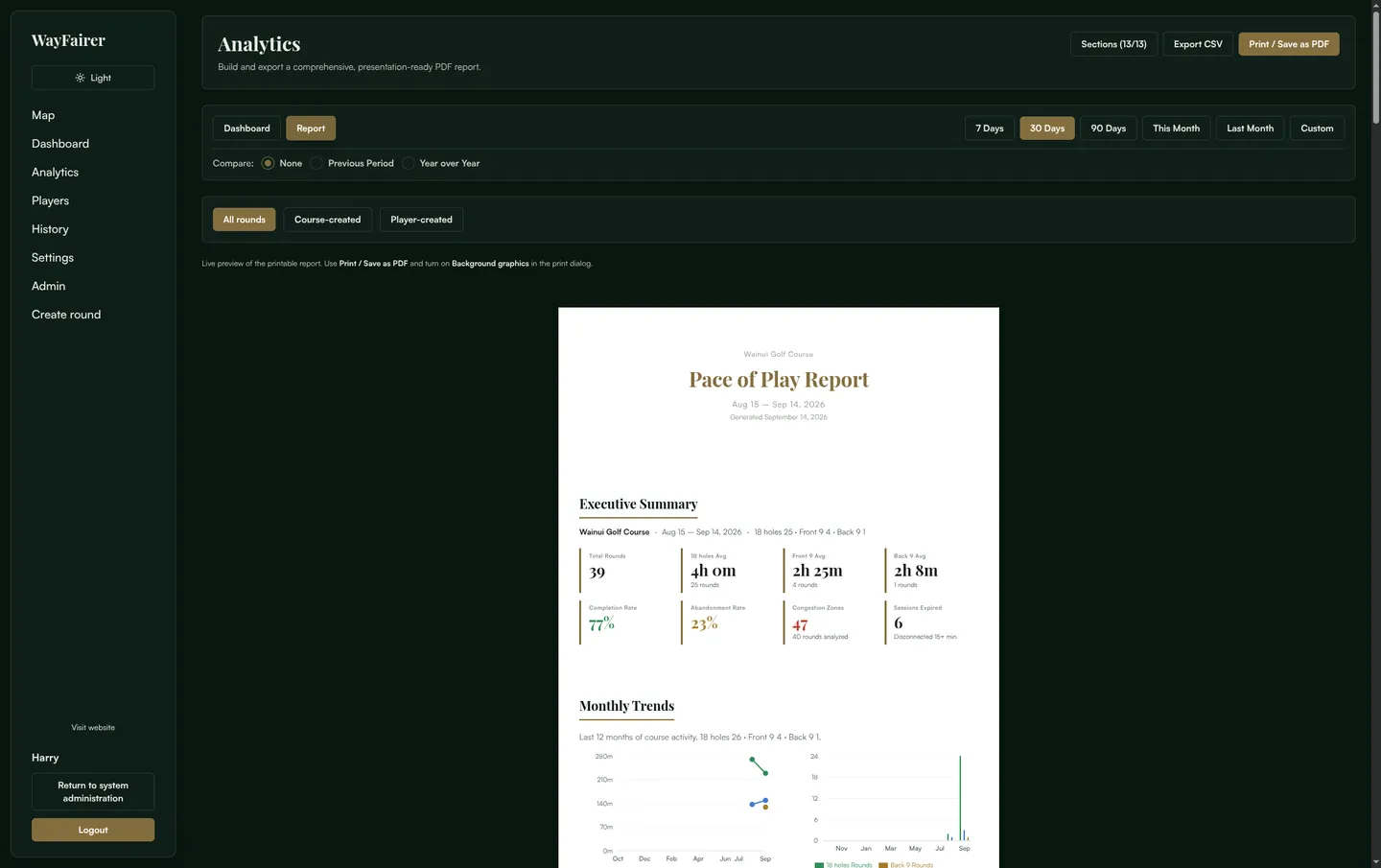
You can customise the report using Sections to remove information you do not need. The Compare option sets the selected period against an earlier one, or against the same period in the previous year, which puts a single figure in context when reporting to a committee.
When saving the report as a PDF, make sure Background graphics is enabled in your browser’s print settings. This ensures the report retains its intended formatting and styling.
How do I find a previous round?
History lists completed rounds by tee time, filterable by start and end time. If a golfer gives you a round code, this is where it resolves.
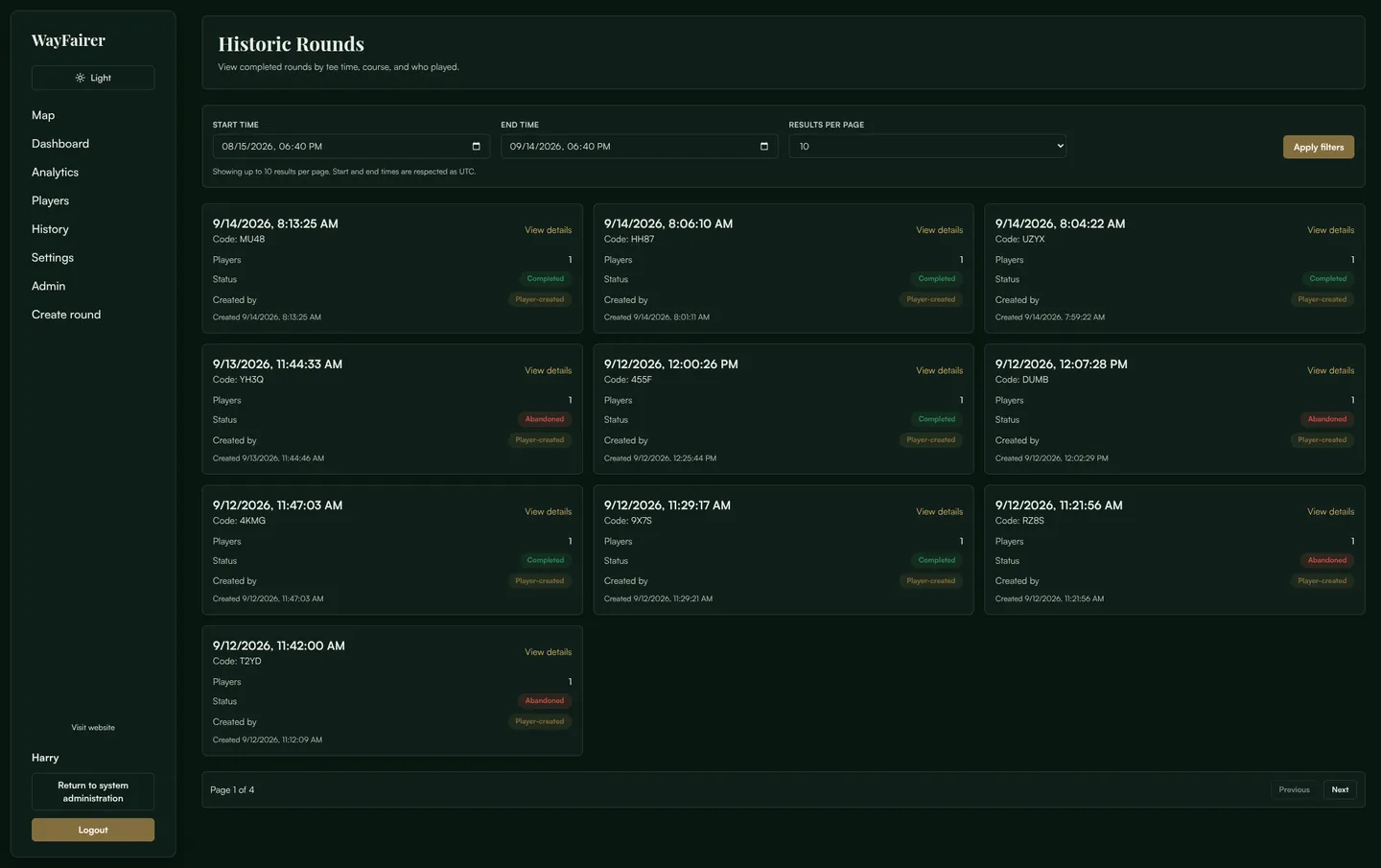
What can I see for an individual round?
View details opens the full record: who played, holes completed, distance tracked, and a Pace Map of the group’s route.
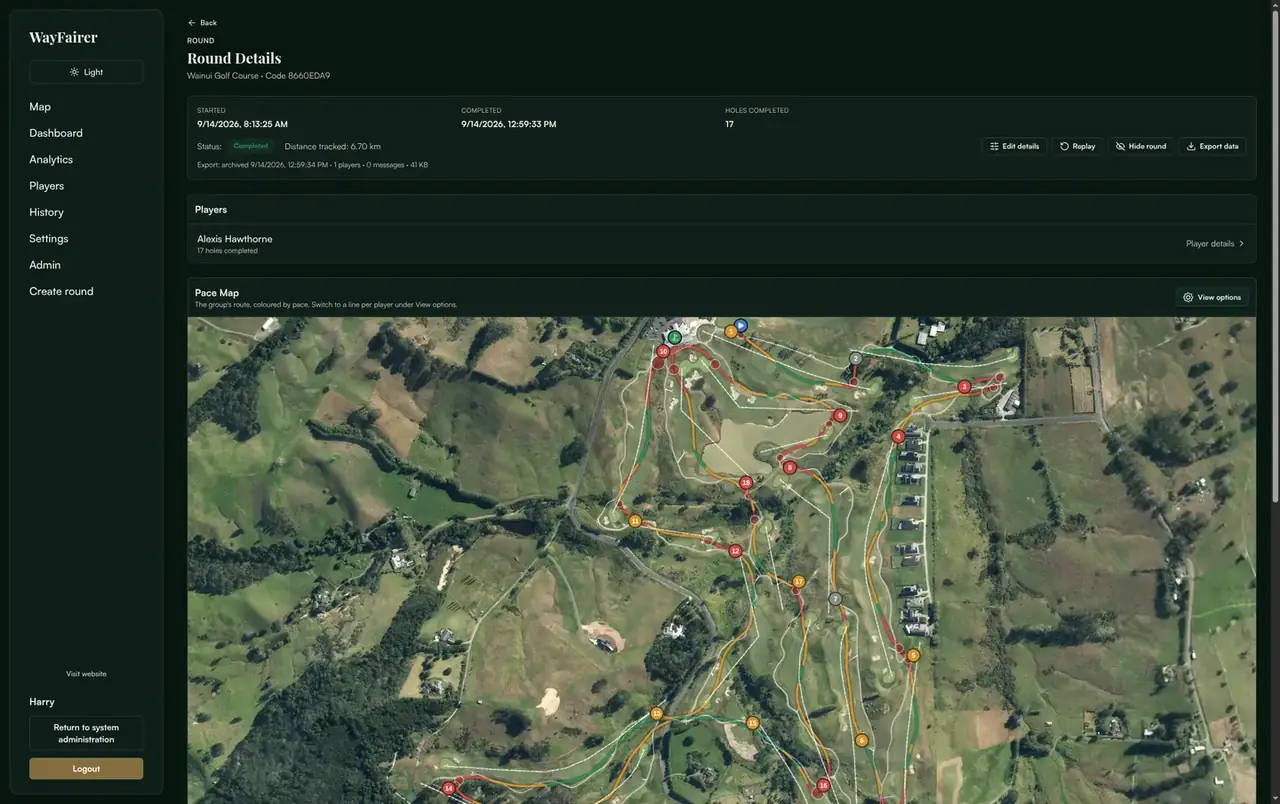
The action bar corrects the record after the round:
Change status. Corrects the status of a round.
Edit details. Corrects information such as a tee time.
Replay. Reviews the round as it was recorded.
Hide round. Removes a round from analytics and history without deleting the underlying record.
Export data. Provides the full data associated with the round.
If a round was left open accidentally or a tee time was entered incorrectly, Change status and Edit details correct the record. Hide round covers staff test rounds and washouts that would otherwise affect your course averages.
Where can I look up a golfer?
Players is a searchable record of everyone who has played your course, with rounds played, rounds completed and last played.
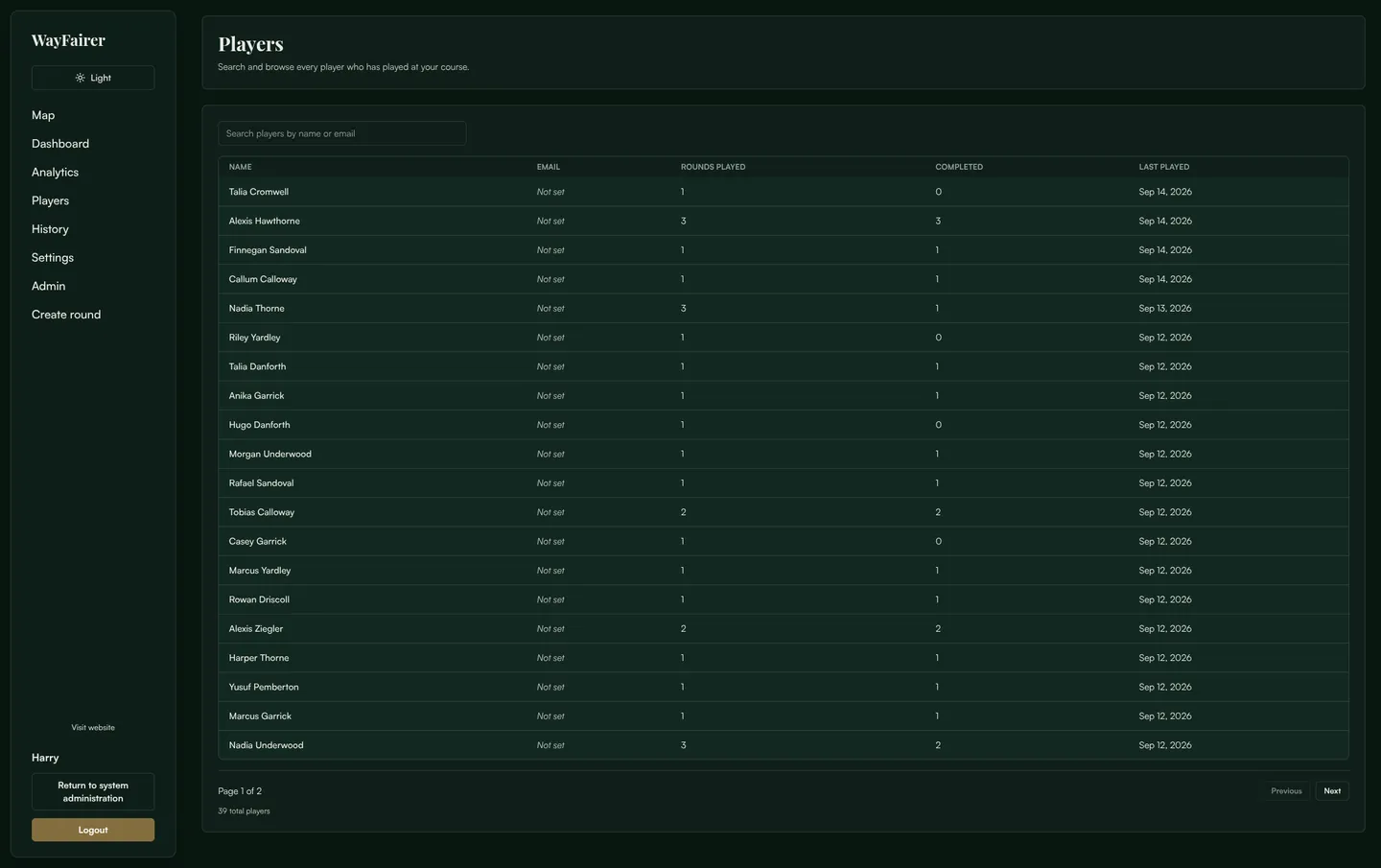
Useful when a member asks about their own history, or when you want context on a group already out there.
How do I give another member of staff access?
Under Admin, Invite a course user takes a name, an email and a role. Leave the password blank and one is generated.
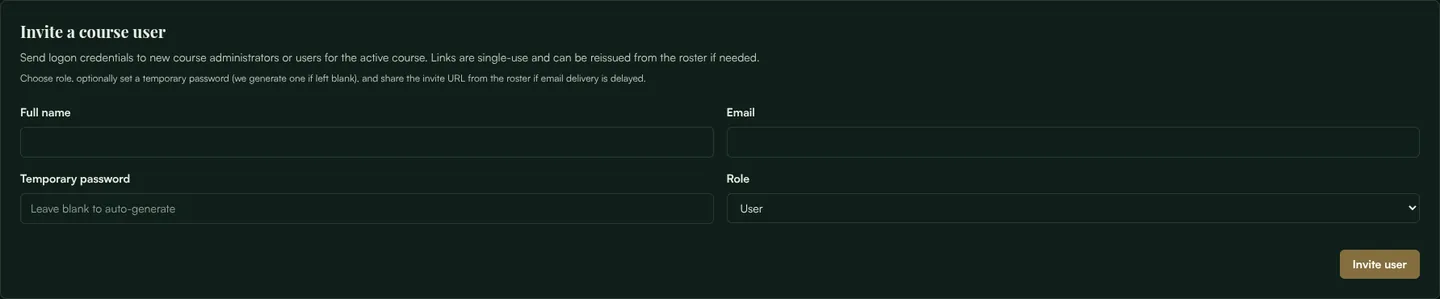
User. For day-to-day course and operational staff.
Administrator. For someone who also needs to manage the course roster and billing.
Invite links are single-use.
If an invitation email is delayed, the pending invitation can be copied from the Course roster and shared with the staff member another way. The Course roster is also where you manage existing staff access, including changing someone’s role, resetting their credentials or removing access when they leave the club.
What can I change in Settings?
Settings holds your own name, email and password, plus console preferences such as how often the Dashboard refreshes.
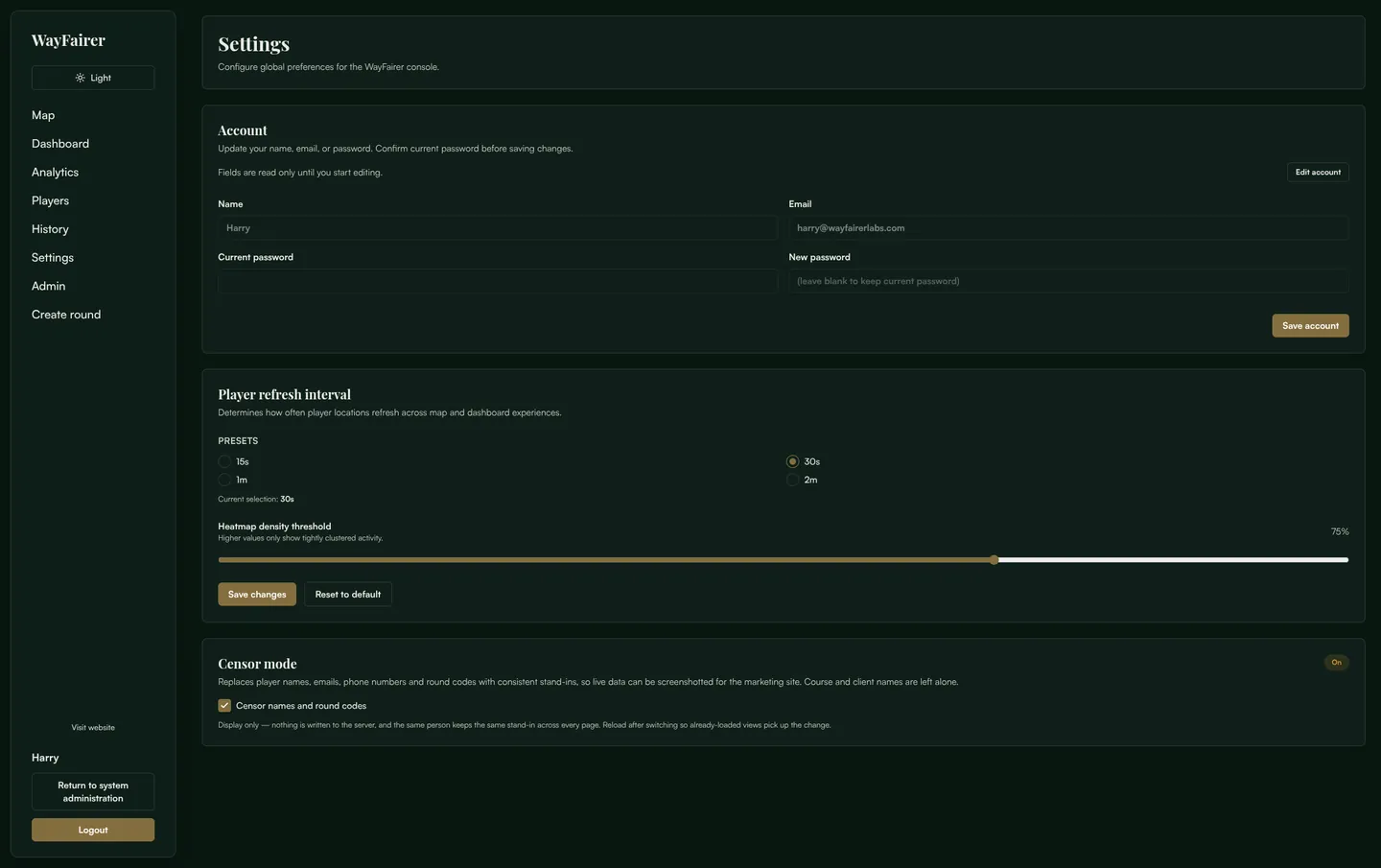
Changing a password asks for the current one first. These settings are per-user, not per-course.
What if…
Create round takes me to billing
Creating rounds directly from the Console is a paid feature. On the free plan, selecting this option takes you to the billing page. Golfers can still start their own rounds through the WayFairer app.
The map is empty even though golfers are on the course
Rounds appear on the map once a golfer tees off and starts their round in the app. If there are no active rounds, the map will remain empty.
A test round is affecting our course averages
Open the round from History and select Hide round. This removes it from the analytics and history without deleting the underlying record.
Our PDF report is missing its styling
When printing or saving the report as a PDF, make sure Background graphics is enabled in the print dialog.
A member of staff cannot sign in
Go to the Course roster on the Admin page and reissue their invitation. Invitation links are single-use, so the original link may already have been used or expired.
By Harry. Published 13 Sept 2026. 5 min read.